
Overview:
When you use a docking station or video cable to connect another monitor to your laptop, there are two main ways to use your extra monitor(s) -- duplicating and extending. Duplicating a monitor shows the same image on the monitor and on the laptop screen while Extending a monitor allows monitors to show multiple screens at once -- especially useful in multitasking.
How to Set Up Display Settings:
All display-related settings can be found within Windows Settings by navigating to Settings -> System -> Display. Below is an example of a 3 monitor setup:
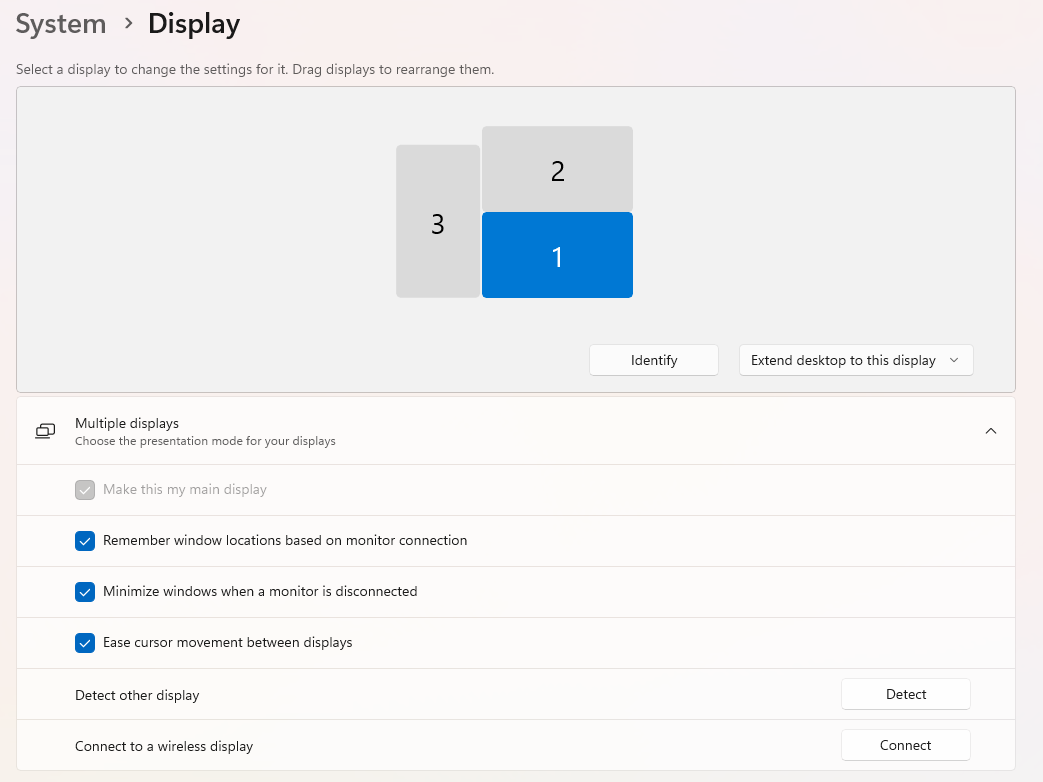
Let's go over the different buttons and options here:
- The numbers and rectangles at the top each represent a different monitor. To see which monitor is which, select the Identify button.
- Next to the Identity button is the Monitor Setting Button. From here you can choose whether the monitor is duplicated or extended.
- Make this my main display marks the selected display as the main monitor. Your desktop and windows will open on that monitor first.
- Minimize windows when a monitor is disconnected and Ease cursor movement between displays do exactly what they suggest. They are preferences and do not affect performance.